
You unlock your iPhone around a hundred times a day. Each of those is a chance to see what actually matters right now, but most to-do lists live inside an app you have to remember to open. By the time you do, the moment has passed.
A widget fixes that. Put your list on the Home Screen or the Lock Screen and it's there every time you pick up your phone, with no tapping, no searching, no "I'll check later". Here's how to set one up, and what makes a to-do widget worth the space.
What makes a to-do widget actually useful
A widget is a small window. Fill it with everything and it becomes noise you learn to ignore. The good ones share a few traits:
- It shows what's next, not everything. Three or four tasks you need to do today beat a scrolling list of forty.
- You can tick things off from the widget. Since iOS 17, widgets can be interactive. If marking a task as done means opening the app, you'll skip it.
- It updates on its own. Add a task on your Mac and it should show up on your phone without you doing anything.
- It's readable at a glance. Clear text, a count, nothing to decode.
"A to-do widget should answer one question: what do I do next?"
How to add a to-do widget to your Home Screen
The steps are the same for any app that offers a widget, including Apple's Reminders:
- Touch and hold an empty spot on your Home Screen until the apps start to jiggle.
- Tap Edit in the top-left corner, then Add Widget.
- Search for your to-do app and tap it.
- Swipe to pick a size. Small fits a few tasks; medium gives each task a full line.
- Tap Add Widget, drag it where you want it, and tap Done.
Most widgets have settings. Touch and hold the widget, then tap Edit Widget to choose which list or project it shows.
How to add a to-do widget to your Lock Screen
Lock Screen widgets are smaller, but you see them even more often, every time you glance at the time.
- Unlock with Face ID or Touch ID, but stay on the Lock Screen. Touch and hold it.
- Tap Customize, then choose Lock Screen.
- Tap the widget area below the clock (or the line above it for an inline widget).
- Pick your to-do app and the widget you want, then tap Done.
The rectangular spot under the clock fits two or three short tasks. The inline spot above the clock shows a single line, perfect for "the one thing I should be doing now".
Which apps have good to-do widgets?
Apple Reminders
Free, already on your phone, and its widgets are interactive. If you live in Reminders and only need a list of what's due, start here. The catch is that Reminders is built around dates and lists, so the widget tends to fill up with everything that's overdue, not just what you've chosen to focus on.
Full-featured task managers
The big task managers all offer widgets too. They're powerful, but the widget usually reflects the app's complexity: projects, labels, filters you have to set up before the widget shows something useful.
TodoNxt
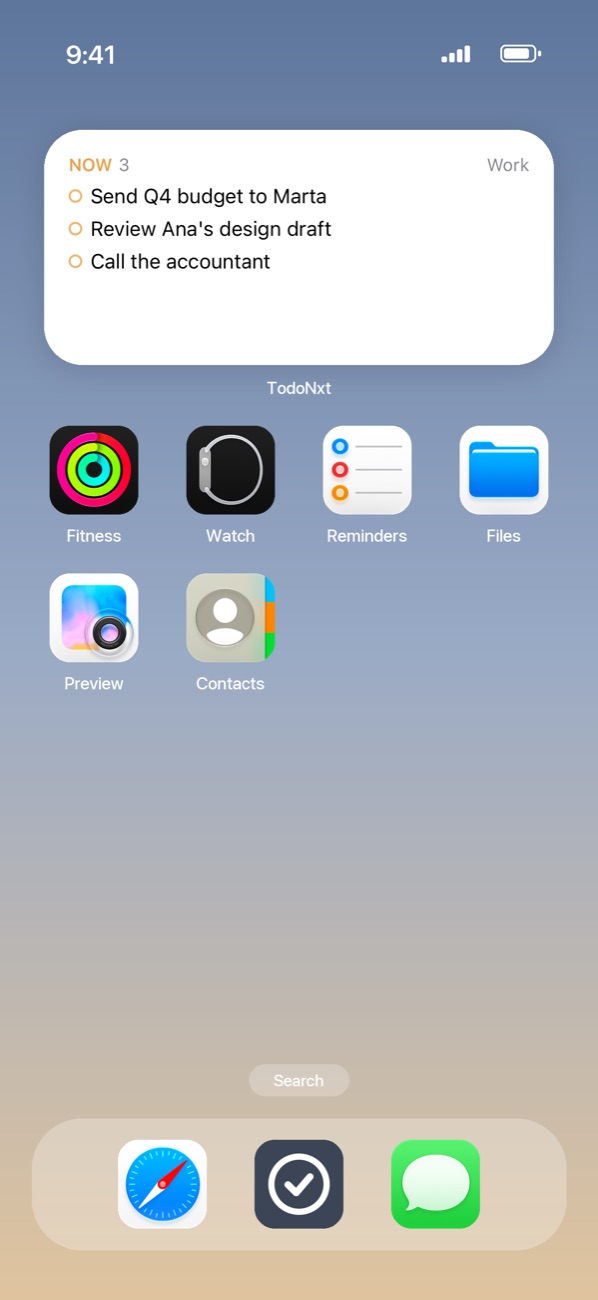
We built TodoNxt's widget around a single idea: show your Now tasks and nothing else. Every task lives in one of three lanes (Now, Nxt, Ltr), and the widget only ever shows Now, the short list of things you've decided to do today.
- Home Screen: small and medium sizes, with a circle to tick off each task right from the widget.
- Lock Screen: a rectangular widget with your Now list, and an inline one with the first task.
- One widget per tab: Work on one widget, Personal on another, if you like.
- Always in sync: add a task in the Mac menu bar and it appears on the widget through your iCloud.
Tips to keep your widget useful
- Keep the visible list short. If the widget shows more than four or five tasks, it stops working as a nudge. Move the rest somewhere out of sight.
- Put it on the first Home Screen. A widget on page three is a widget you never see.
- Use the Lock Screen for your one priority. The inline spot is ideal for a single task you don't want to forget.
- Review it once a day. Each morning, decide what goes into today's list. Our five-minute daily plan works well for this.
The bottom line
The best place for a to-do list is somewhere you'll see it without trying. On iPhone, that's a widget. Pick an app whose widget shows only what's next, lets you tick things off without opening it, and stays in sync with your other devices, and your phone becomes a gentle reminder instead of a distraction.
TodoNxt puts your Now tasks on the iPhone Home Screen and Lock Screen. Tick them off right from the widget, and keep the same list in your Mac menu bar.
Try TodoNxt free for 3 days →